When the user select ‘VTS Commands’ they are directed to the page given below.
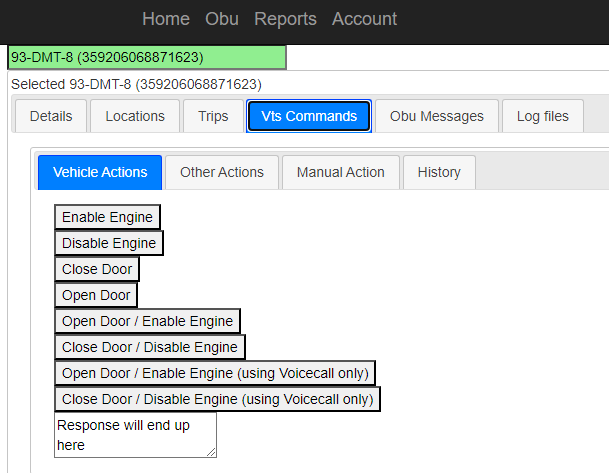
Vehicle Actions #
The user can select the commands they want to run on a specific car related to VTS from the options as per requirements.
The commands that can be run are as detailed in the table below:
| Commands | Operations |
| Enable Engine | Start the engine of car. |
| Disable Engine | To disable the engine of car. |
| Close Door | To close the doors of the car. |
| Open Door | To open the door of the car. |
| Open Door/Enable Engine | To open the door and start the engine simultaneously. |
| Close Door/Disable Engine | To close the door and disable the engine simultaneously. |
| Open Door/Enable Engine(using Voicecall only) | Do both commands through Voicecall. |
| Close Door/Disable Engine(using Voicecall only) | Do both commands through Voicecall. |
To run any of the above command, click on the required command button.
Other Actions #
To perform other actions on the vehicle
- Click on ‘Other Actions’ under ‘VTS Commands’.
- The user will be directed to the page given below
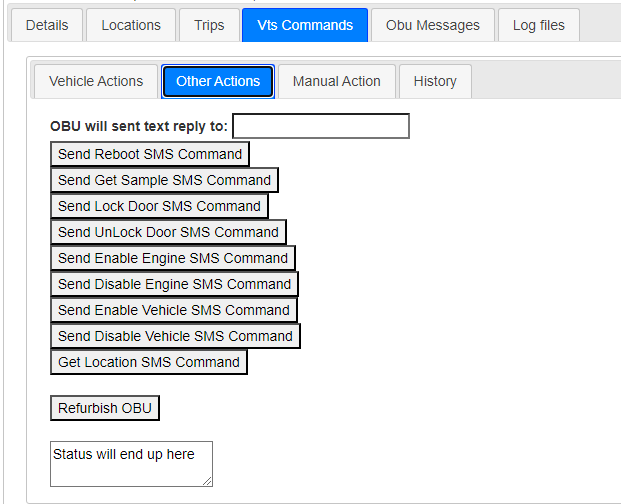
- Input the phone number to which the reply should be sent.
- Now select whichever action the user wants to perform.
- The reply is in the form of ‘Text’.
- Click on ‘Refurbish OBU’ to renovate the OBU
Other actions that can be performed on VTS is shown in this page, which are as given in the below table.
| Actions | Purpose |
| Sent Reboot SMS Command | Send SMS command to reboot the engine. |
| Send Get Sample SMS Command | To send SMS command to get the sample. |
| Send Lock Door SMS Command | To send SMS command to lock the door of vehicle. |
| Sent Unlock Door SMS Command | To send SMS command to unlock the door of the vehicle. |
| Send Enable Engine SMS Command | To send SMs command to start the engine. |
| Send Disable Engine SMS Command | To send SMS command to stop/disable the engine. |
| Send Enable Vehicle SMS Command | To send SMs command to start the vehicle. |
| Send Disable Vehicle SMS Command | To send SMS command to stop/disable the vehicle. |
| Get Location SMS Command | Send SMs command to get location of the vehicle. |
| Refurbish OBU | To renovate/ revamp the OBU. |
Manual Actions #
The user can manually enter the VTS Command that they want to run.
- Click on ‘Manual Action’ tab.
- This directs them to the page as in the figure given below;
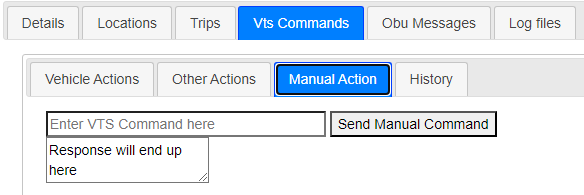
- The user can enter the command they want to send in the field ‘Enter VTS Command here’
- To send the command entered click on ‘Send Manual Command’
- Response will be updated in ‘Response will end up here’ block.
History #
When a user want to see the History of the commands run on OBU, click on ‘History’ tab under the tab ‘VTS Commands’.

The History consists details of
- Name: Name of the command.
- Method: The method through which the command was executed.
- Status: Whether the actions were ‘Success’ or ‘Failure’.
- RequestTimestamp: The time at which the user requested to run the command.
- CompletedTimestamp: The time at which the command execution was completed.
- MetaData: