Skip to content
Manual CGIS
Manual CGIS
  • Home
  • Services
  • About
  • Reviews
  • Why Us
  • Contact

General

  • Management Solution
    • Introduction
    • Logging Operational Process
    • Archive Input & Output Files
    • Version Control
    • Backup
    • Recovery
    • Deviation
    • Infrastructure
    • Knowledge management
    • Information security
    • Location(s)
  • Working Solution
    • Background
    • Solution Environment
    • Solution Environment Descriptive
    • Solution Environment Schematic
    • Explanation Scheme Solution
    • Infrastructure solution
    • Infrastructure solution schematic
    • Infrastructure solution descriptive (different parts/components)
  • Process Monitoring Solution
    • Introduction
    • Checklist process monitoring
    • Description process monitoring
    • Check collection (basic check, network check)
    • Request overview
    • Explanation overview
    • Timeline overview
    • Schedule monitoring
    • General troubleshooting
    • Timing, runs and solution (current time, lead time, summer time, winter time)
    • Handling known issues resolution
  • Maintenance Solution
    • General Maintenance Solution
    • Errors
    • Wishes
    • To Test
    • Test Major Change
    • Test minor change
    • Change management (software, website, operational handbook, system documentation)
    • Change management solution content
  • Technology Assurance, Process Monitoring and Politics
    • Planned Technology in the Short Term, Medium Term and Long Term
    • Process Monitoring
    • Current Available Political Signal

BOA

  • Dashboard
  • Customer
  • Role
  • Instance
  • Persons
    • Person Overview
    • Wego Admins
  • Companies
    • Companies Overview
  • Organization
    • Organization Overview
  • Vehicles
    • Vehicle Overview
    • VTS Vehicle List
    • VTS Troubleshoot
    • Vehicle Attribute Categories
    • Vehicle Attributes
    • Odometer Log Trial
    • Vehicle Usage List
    • Custom Profile Overview
  • Shared Vehicle Groups
    • Shared Vehicle Group Overview
  • Drivers
    • Drivers Overview
  • Bookings
    • Bookings Overview
    • Booking Request
    • New Booking
    • Special Booking
    • Pre And Post Trip Questions
    • Trip Simulator
  • Cost And Expenses
    • Cost And Expenses Overview
  • Invoicing
    • Invoices
    • Direct Debit File
    • Additional Free Items
    • Test Invoice Generator
    • Missing Invoice Generator
  • Reports
    • Vehicle Occupancy Report
    • Revenue Per Vehicle Report
    • Trip Data Report
    • Maintenance Planning Report
    • Snail Trail Report
    • Kickback Report
    • Cost Center Report
    • Journey Data Report
    • Vehicle Utilization Report
    • Behavioural Data Report
  • Signup Forms
    • Signup Forms Overview
    • Signups Overview
  • Event Viewer
    • Event Viewer Overview
  • Branding & Templates
    • Branding
    • Templates
    • T&C And Privacy Statement
  • Monitoring
    • Interface Status
    • Error Log
    • Error Escalation
  • Reservation
    • Reservation Transfer
    • Reservation Overview
  • Profile Link
    • Sign Out
    • Profile
  • Driver
    • Navigation Bar
      • Home
      • Booking Overview
      • New Booking
      • Booking History
      • Cost And Expenses
      • Subscription
      • Notification Link
      • Language Link
      • Profile Link
        • Profile
        • Terms & Conditions
        • Sign Out

VTS

  • General
    • Overview
    • Introduction
    • Login
    • Navigation Bar
    • Home
  • OBU
    • OBU
    • OBU-Details
    • Locations
    • Trips
    • VTS Commands
    • OBU Messages
    • Log Files
  • Reports
    • VTS Command Summary
    • OBU Overview
    • Global VTS Command History
    • Actions
  • Account
    • User Profile
View Categories

VTS Commands

1 min read

When the user select ‘VTS Commands’ they are directed to the page given below.
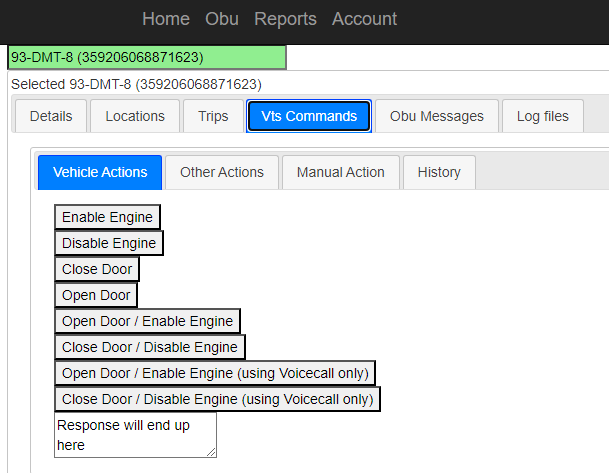
Vehicle Actions #

The user can select the commands they want to run on a specific car related to VTS from the options as per requirements.

The commands that can be run are as detailed in the table below:

CommandsOperations
Enable EngineStart the engine of car.
Disable EngineTo disable the engine of car.
Close DoorTo close the doors of the car.
Open DoorTo open the door of the car.
Open Door/Enable EngineTo open the door and start the engine simultaneously.
Close Door/Disable EngineTo close the door and disable the engine simultaneously.
Open Door/Enable Engine(using Voicecall only)Do both commands through Voicecall.
Close Door/Disable Engine(using Voicecall only)Do both commands through Voicecall.

To run any of the above command, click on the required command button.

Other Actions #

To perform other actions on the vehicle

  1. Click on ‘Other Actions’ under ‘VTS Commands’.
  2. The user will be directed to the page given below
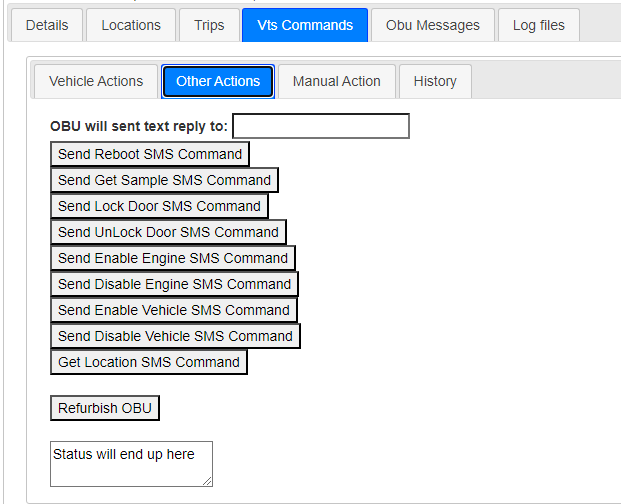
  1. Input the phone number to which the reply should be sent.
  2. Now select whichever action the user wants to perform.
  3. The reply is in the form of ‘Text’.
  4. Click on ‘Refurbish OBU’ to renovate the OBU

Other actions that can be performed on VTS is shown in this page, which are as given in the below table.

ActionsPurpose
Sent Reboot SMS CommandSend SMS command to reboot the engine.
Send Get Sample SMS CommandTo send SMS command to get the sample.
Send Lock Door SMS CommandTo send SMS command to lock the door of vehicle.
Sent Unlock Door SMS CommandTo send SMS command to unlock the door of the vehicle.
Send Enable Engine SMS CommandTo send SMs command to start the engine.
Send Disable Engine SMS CommandTo send SMS command to stop/disable the engine.
Send Enable Vehicle SMS CommandTo send SMs command to start the vehicle.
Send Disable Vehicle SMS CommandTo send SMS command to stop/disable the vehicle.
Get Location SMS CommandSend SMs command to get location of the vehicle.
Refurbish OBUTo renovate/ revamp the OBU.

Manual Actions #

The user can manually enter the VTS Command that they want to run.

  1. Click on ‘Manual Action’ tab.
  2. This directs them to the page as in the figure given below;
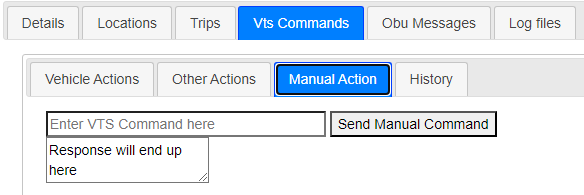
  1. The user can enter the command they want to send in the field ‘Enter VTS Command here’
  2. To send the command entered click on ‘Send Manual Command’
  3. Response will be updated in ‘Response will end up here’ block.

History #

When a user want to see the History of the commands run on OBU, click on ‘History’  tab under the tab ‘VTS Commands’.

The History consists details of

  1. Name: Name of the command.
  2. Method: The method through which the command was executed.
  3. Status: Whether the actions were ‘Success’ or ‘Failure’.
  4. RequestTimestamp: The time at which the user requested to run the command.
  5. CompletedTimestamp: The time at which the command execution was completed.
  6. MetaData:
TripsOBU Messages
Table of Contents
  • Vehicle Actions
  • Other Actions
  • Manual Actions
  • History

Copyright © 2026 ARS T&TT