Skip to content
Manual CGIS
Manual CGIS
  • Home
  • Services
  • About
  • Reviews
  • Why Us
  • Contact

General

  • Management Solution
    • Introduction
    • Logging Operational Process
    • Archive Input & Output Files
    • Version Control
    • Backup
    • Recovery
    • Deviation
    • Infrastructure
    • Knowledge management
    • Information security
    • Location(s)
  • Working Solution
    • Background
    • Solution Environment
    • Solution Environment Descriptive
    • Solution Environment Schematic
    • Explanation Scheme Solution
    • Infrastructure solution
    • Infrastructure solution schematic
    • Infrastructure solution descriptive (different parts/components)
  • Process Monitoring Solution
    • Introduction
    • Checklist process monitoring
    • Description process monitoring
    • Check collection (basic check, network check)
    • Request overview
    • Explanation overview
    • Timeline overview
    • Schedule monitoring
    • General troubleshooting
    • Timing, runs and solution (current time, lead time, summer time, winter time)
    • Handling known issues resolution
  • Maintenance Solution
    • General Maintenance Solution
    • Errors
    • Wishes
    • To Test
    • Test Major Change
    • Test minor change
    • Change management (software, website, operational handbook, system documentation)
    • Change management solution content
  • Technology Assurance, Process Monitoring and Politics
    • Planned Technology in the Short Term, Medium Term and Long Term
    • Process Monitoring
    • Current Available Political Signal

BOA

  • Dashboard
  • Customer
  • Role
  • Instance
  • Persons
    • Person Overview
    • Wego Admins
  • Companies
    • Companies Overview
  • Organization
    • Organization Overview
  • Vehicles
    • Vehicle Overview
    • VTS Vehicle List
    • VTS Troubleshoot
    • Vehicle Attribute Categories
    • Vehicle Attributes
    • Odometer Log Trial
    • Vehicle Usage List
    • Custom Profile Overview
  • Shared Vehicle Groups
    • Shared Vehicle Group Overview
  • Drivers
    • Drivers Overview
  • Bookings
    • Bookings Overview
    • Booking Request
    • New Booking
    • Special Booking
    • Pre And Post Trip Questions
    • Trip Simulator
  • Cost And Expenses
    • Cost And Expenses Overview
  • Invoicing
    • Invoices
    • Direct Debit File
    • Additional Free Items
    • Test Invoice Generator
    • Missing Invoice Generator
  • Reports
    • Vehicle Occupancy Report
    • Revenue Per Vehicle Report
    • Trip Data Report
    • Maintenance Planning Report
    • Snail Trail Report
    • Kickback Report
    • Cost Center Report
    • Journey Data Report
    • Vehicle Utilization Report
    • Behavioural Data Report
  • Signup Forms
    • Signup Forms Overview
    • Signups Overview
  • Event Viewer
    • Event Viewer Overview
  • Branding & Templates
    • Branding
    • Templates
    • T&C And Privacy Statement
  • Monitoring
    • Interface Status
    • Error Log
    • Error Escalation
  • Reservation
    • Reservation Transfer
    • Reservation Overview
  • Profile Link
    • Sign Out
    • Profile
  • Driver
    • Navigation Bar
      • Home
      • Booking Overview
      • New Booking
      • Booking History
      • Cost And Expenses
      • Subscription
      • Notification Link
      • Language Link
      • Profile Link
        • Profile
        • Terms & Conditions
        • Sign Out

VTS

  • General
    • Overview
    • Introduction
    • Login
    • Navigation Bar
    • Home
  • OBU
    • OBU
    • OBU-Details
    • Locations
    • Trips
    • VTS Commands
    • OBU Messages
    • Log Files
  • Reports
    • VTS Command Summary
    • OBU Overview
    • Global VTS Command History
    • Actions
  • Account
    • User Profile
View Categories

OBU-Details

1 min read

When a user enters an OBU Number/IMEI Number/License Plate, they will be directed to ‘Details’ page under navigation tab ‘OBU’. 
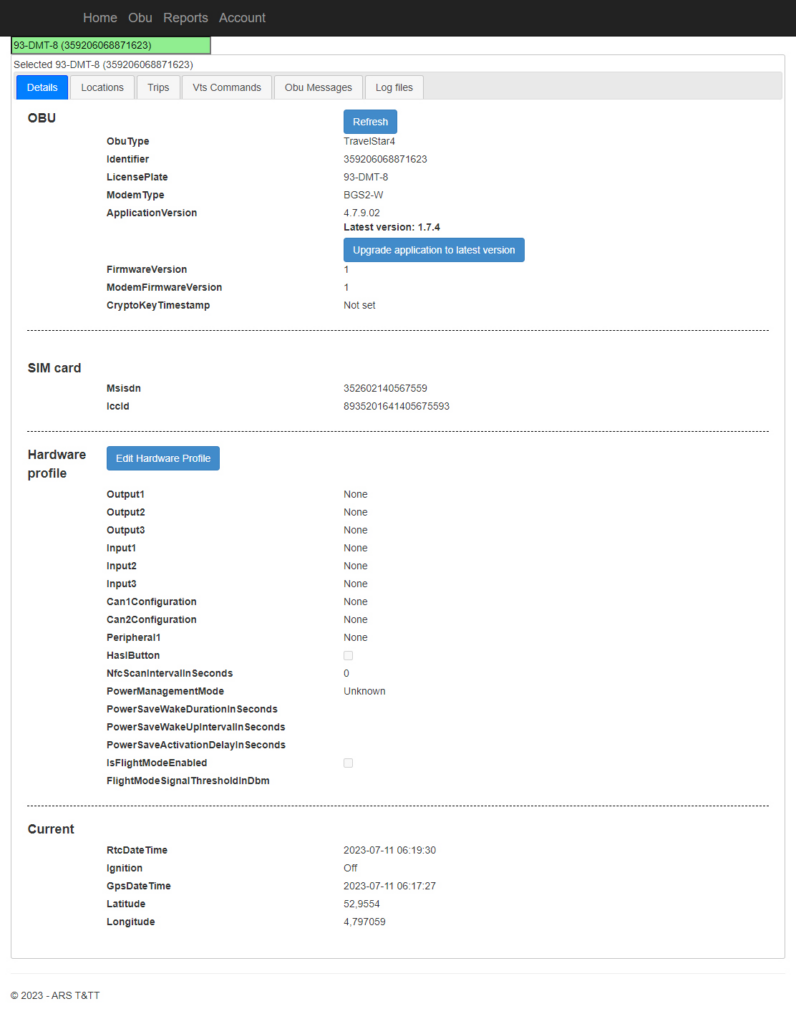
Details – OBU #

This provides details about the OBU.
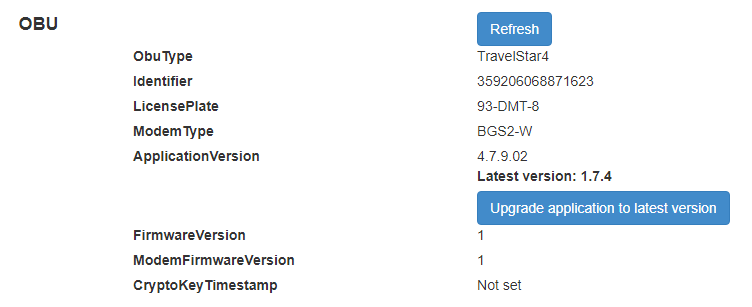
  1. The details about the OBU are
  • OBU Type – Type of OBU used.
  • Identifier – The OBU/Identifier number.
  • License Plate – License Plate number of the vehicle for given OBU.
  • Modem Type – The type of modem used inside the OBU.
  • Application Version – Version number of the application installed.
  • Firmware Version – Version number of the firmware.
  • CryptoKey Timestamp – Whether timestamp is set or not- set.
  1. The ‘Refresh’ button refreshes the data/details in the OBU area if clicked.
  1. The ‘Upgrade application to latest version’, if clicked will update the application version to the latest version of OBU.

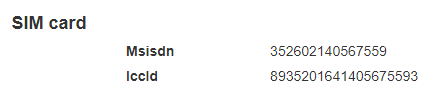
Details – Sim Card #

Details about the SIM Card used in OBU is given here.
Details – Hardware Profile #

The hardware details of the OBU are displayed as shown below:
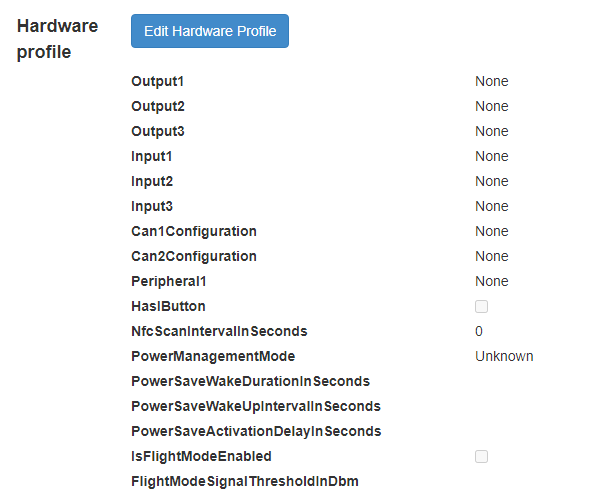
To update the ‘Hardware profile’.

  1. The user can enter the command they want to send in the field ‘Enter VTS Command here’
  2. To send the command entered click on ‘Send Manual Command’
  3. Response will be updated in ‘Response will end up here’ block.
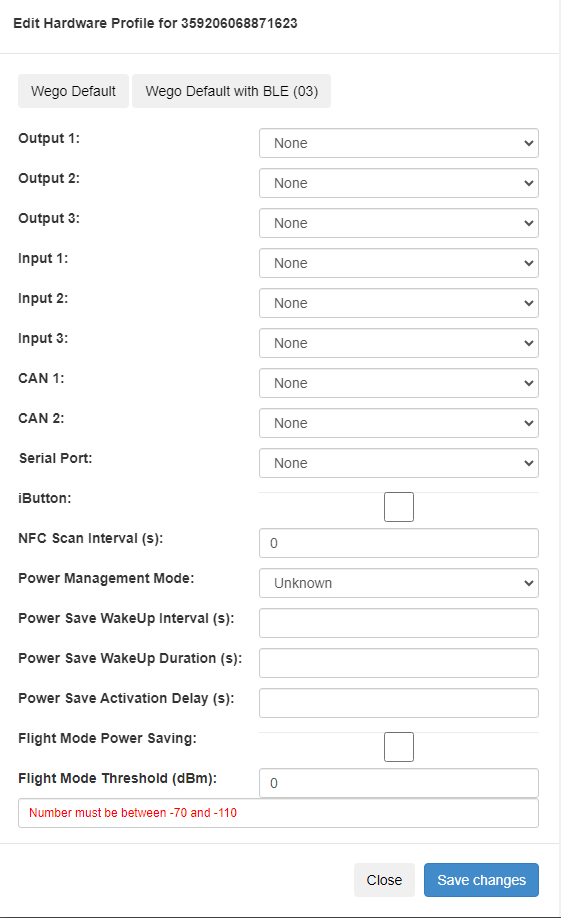
  1. The user can enter the details manually or fields can be filled with default values automatically by selecting either one of  ‘Wego Default’ and ‘Wego Default with BLE (03)’ that can be seen at the top of the pop up box.
  2. The value for Flight Mode Threshold must be between -70 and -110.
  3. To save/update the changes, click ‘Save changes’ button.
  4. Click on ‘Close’ button, to not save any of the changes.

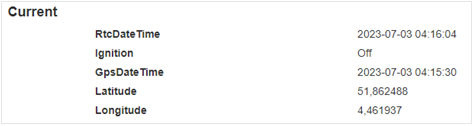
Details – Current #

Details about the SIM Card used in OBU is given here.
OBU
Table of Contents
  • Details - OBU
  • Details - Sim Card
  • Details - Hardware Profile
  • Details - Current

Copyright © 2026 ARS T&TT